How to Remove Backup sets in Veritas Backup Exec
From Veritas Backup Exec 2014 onwards, it has no option to delete the backup sets however we can set the expiry date to clean up backup sets.
In this blog we are showing how to remove backup set in Veritas Backup Exec 20.1.
Issue:
In case there is low space on the backup storage or some onetime backup needs to be removed but there isn’t any option to delete the backup set.
Cause:
Delete backup set button has been replaced by expiry backup set option.
Download Our Services Brochure
Solution:
To delete a backup set follow the bellow steps;
Steps–
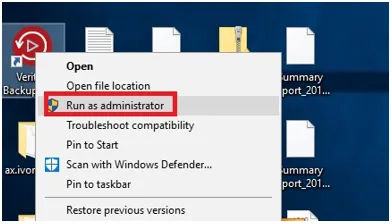
1. Right click on Veritas Backup Exec central admin server icon and select the option “Run as administrator” to launch backup Exec console.
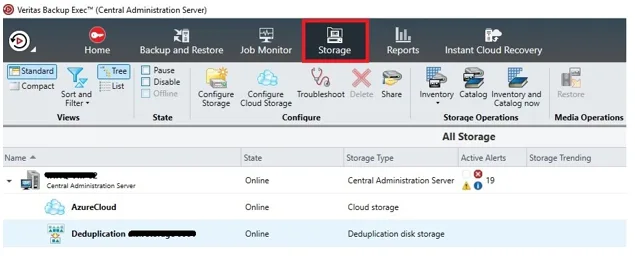
2. Go to Storage.
Note- You can delete backup sets from both Cloud and local as well.
3. Here we are deleting the backup set from local, so double click on disk storage.
4. Click on Backup Sets in left pane and select the backup set which you want to delete.
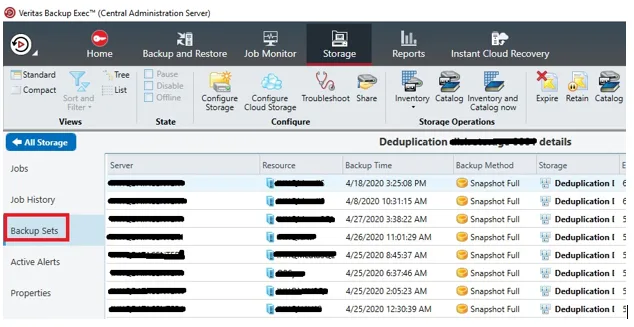
5. Right click on that particular Backup Set and click on the option Expire.

6. This will open window with the dependent backup sets and click on Expire to delete all correlated backups sets.