
How to Create VM Instance in Google Cloud Platform
Here we are showing how to create VM Instance on Google Cloud GUI Console. In VM Instance we deploy our web application and resources.
Perquisite-
Login credential of Google Cloud Platform as a administrator.
Steps to Create VM Instance-
1. Log in to Google Cloud Console.
https://console.cloud.google.com
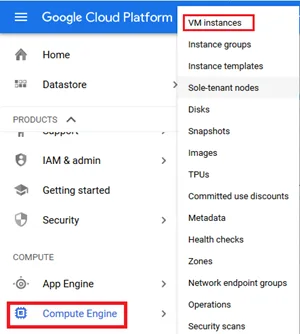
2. Click on the Navigation Menu.
3. Click on Compute Engine > VM instances.
4. Click on CREATE INSTANCE.

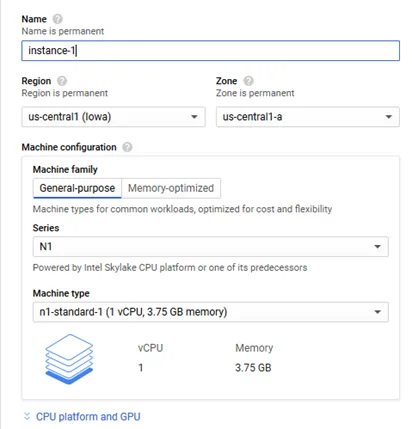
5. On next screen.
• Put the Instance name.
• Select the Region.
• Select the Machine type or custom (as per requirement)
For custom there are some CPU-Memory combination and restriction, refer this link prior creating custom VM.
https://cloud.google.com/compute/docs/instances/creating-instance-with-custom-machine-type
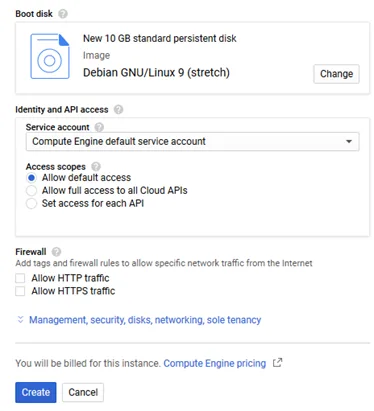
• Select the Boot disk (select the OS)
On the boot disk option click on change, select OS image then storage type (SSD recommended for better performance) and mention the disk size.
• Optional API access and Firewall exception (skip if required),
• Continue with the instance creation process.
Note- If the required Instance needed high CPU or Memory and you are unable to create the instance in a region then refer our blog to fix it.
<< —- URL to be pasted — >>
6. Wait for few minutes and you will get new VM Instance created.